

Custom Quests Using Webhooks
This guide describes how to use webhook-based custom quests on Forge, where your system verifies quest completion and returns the result when a user clicks Verify Now.
Introduction
Forge supports a defined set of quest patterns through Data Ingestion APIs.
Some quests, however, require validation that only your backend can perform.
For such cases, Forge supports Webhook-based Custom Quests.
With this approach:
- Forge calls your webhook when the user clicks Verify Now
- Your system checks whether the user has completed the quest
- Your webhook returns the verification status
- Forge updates the quest status based on your response
This allows you to implement any custom quest logic, as long as completion can be determined by your system.
Webhook Requirements
When creating a webhook-based custom quest, you must provide:
- A publicly accessible POST webhook endpoint
- The endpoint should be able to accept and process a JSON request
- The endpoint should returns appropriate HTTP status codes
Forge will invoke this webhook every time a user clicks Verify Now.
Webhook Request Payload
When verification is triggered, Forge sends the following JSON payload to your webhook:
{
  "user_id": "string",
  "user_name": "string",
  "user_connected_accounts": {
    "accounts": [
      {
        "id": "string",
        "name": "string"
      }
    ],
    "wallets": [
      {
        "wallet": "string",
        "tags": ["string"]
      }
    ]
  },
  "quest_id": "string",
  "quest_title": "string",
  "quest_tags": ["string"]
}
Webhook Response Requirements
After validating quest completion, your webhook must return an HTTP response status that indicates the result of the verification.
Forge uses the HTTP status code to determine whether the quest should be marked as completed.
Expected Responses
-
HTTP 200
Return this response if the user has completed the quest.
Forge will mark the quest as completed and reward the user. -
HTTP 400
Return this response if the user has not completed the quest.
The quest will remain incomplete.
Only the HTTP status code is evaluated, not the response body.
Identifying the User and Quest
When Forge invokes your webhook, it includes information that allows you to identify both the user and the quest being verified.
Your webhook should use this information to check whether the user has completed the quest in your system.
Identifying the User
User details are provided in the webhook payload and can be used to map the Forge user to a user in your system.
You can identify the user using:
-
Username
user_name
-
Connected platform accounts
- Available under
user_connected_accounts[accounts] - Includes platform-specific user IDs and names (for example, Steam)
- Available under
-
Connected wallets
- Available under
user_connected_accounts[wallets] - Includes wallet address and associated tags (for example, metamask, sui)
- Available under
Use the identifier that best matches how users are tracked in your system.
Identifying the Quest
Quest details are included in the webhook payload and can be used to determine which quest is being verified.
You can identify the quest using:
-
Quest title
quest_title- This value matches exactly what you configured in the Forge dashboard
-
Quest ID
quest_id- A unique identifier for the quest. (You get the quest id if you create the quest using Forge Direct SDK.)
Your verification logic should use the quest title or quest ID to determine the completion criteria for the quest.
Types of Webhook-Based Custom Quests
Forge supports the following types of webhook-based custom quests:
1. Custom Quest
- One-time quest
- Can be completed only once per user
2. Custom Quest (Daily)
- Recurring quest
- Refreshes every 24 hours
- Can be completed once per day
Custom Quests Configuration using Webhook
The following section shows 2 most common examples of running a custom quest using webhook.
We will assume your webhook url is https://my.webhook.com/quest-verify.
Example: Reward User for Completing Level 10 (One-Time Quest)
This example shows how to configure a one-time webhook-based custom quest that rewards users for completing Level 10 in your game.
We assume that you use steam based login so you have user's steam ID in your backend.
Quest completion is verified by your backend system using a webhook.
Prerequisites
- A public POST webhook endpoint is set up and accessible.
- Your backend system can determine whether a user has completed Level 10.
Configure the Quest on Forge
- Log in to the Forge dashboard at https://dash.forge.gg.
-
From the left navigation, select Quests
-
Click Quest in the top-right corner
-
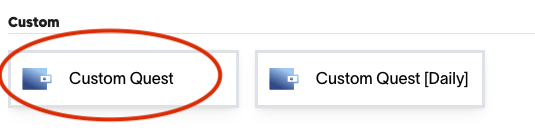
Select Custom Quest as the quest type
-
- Configure the quest:
- Title: A clear name for the quest
Example:COMPLETE LEVEL 10 - Description: A short explanation of what the user needs to do.
- Partner webhook: Your public webhook endpoint
https://my.webhook.com/quest-verify - Points:
Set the number of points to reward the user upon quest completion. - Tags (Optional):
Tags help categorize quests.
Example:game - Start Time:
Set the date and time when the quest should become active.
This can be set to any future time.
- Title: A clear name for the quest
- Save and publish the quest.
- Click Save and ensure the quest is marked as Enabled
- Click Publish in the top-right corner
Once published, the quest becomes live and users can now start completing the quest.
Verification Flow
- The user completes Level 10 in your game.
- The user clicks Verify Now on Forge.
- Forge sends a POST request to your webhook with user and quest details.
{
  "user_id": "U80Sp61WOXeboISGG9kjZgL0kWs1",
  "user_name": "rajat38",
  "user_connected_accounts": {
    "accounts": {
      "steam": [
        {
          "id": "76561198775492495",
          "name": "rajat"
        }
      ]
    }
	},
  "quest_id": "custom-20-your-abc-campaign-3098b4a2-15b9-47e9-a570-803765fb534f",
  "quest_title": "COMPLETE LEVEL 10",
  "quest_tags": []
}- Your webhook uses quest title and user's connected steam id to verify whether the user completed the quest or not and returns 200 status code if completed, else 400 status code.
- Forge marks the quest as
completedif 200 status code is sent in response.
Example: Reward User for Participating in a Tournament (Daily Quest)
This example shows how to configure a daily webhook-based custom quest that rewards users for participating in a tournament.
This quest is recurring and refreshes every 24 hours. A user can complete this quest once per day.
We assume that you use metamask wallet based login so you have user's wallet address in your backend to map to Forge's user id.
Prerequisites
- A public POST webhook endpoint is set up and accessible.
- Your backend system can determine whether a user participated in a tournament for the current day.
Configure the Quest on Forge
- Log in to the Forge dashboard at https://dash.forge.gg.
-
From the left navigation, select Quests
-
Click Quest in the top-right corner
-
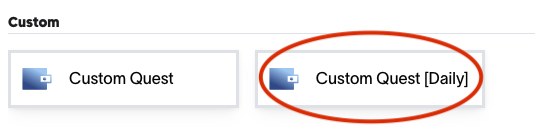
Select Custom Quest [Daily] as the quest type
-
- Configure the quest:
- Title: A clear name for the quest
Example:PARTICIPATE IN TOURNAMENT - Description: A short explanation of what the user needs to do.
- Partner webhook: Your public webhook endpoint
https://my.webhook.com/quest-verify - Points:
Set the number of points to reward the user upon quest completion. - Tags (Optional):
Tags help categorize quests.
Example:game,daily - Start Time:
Set the date and time when the quest should become active.
The quest will refresh every 24 hours based on this start time.
- Title: A clear name for the quest
- Save and publish the quest.
- Click Save and ensure the quest is marked as Enabled
- Click Publish in the top-right corner
Once published, the quest becomes live and will refresh daily.
Verification Flow
- The user participates in a tournament on your platform.
- The user clicks Verify Now on Forge.
- Forge sends a POST request to your webhook with user and quest details.
{
  "user_id": "U80Sp61WOXeboISGG9kjZgL0kWs1",
  "user_name": "rajat38",
  "user_connected_accounts": {
    "wallets": {
			"metamask": [
        {
          "wallet": "0x67bacbe90a4249e0d8c68......",
          "tags": ["campaign"]
        }
			]
    }
  },
  "quest_id": "custom-21-your-abc-campaign-3098b4a2-15b9-47e9-a570-803765fb534f",
  "quest_title": "PARTICIPATE IN TOURNAMENT",
  "quest_tags": []
}- Your webhook identify's the user using his wallet address and verifies whether the user participated in a tournament for the current day and:
- Returns 200 if the user participated
- Returns 400 if the user did not participate
- Forge marks the quest as completed for the day if a 200 status code is returned.
Updated 9 months ago